


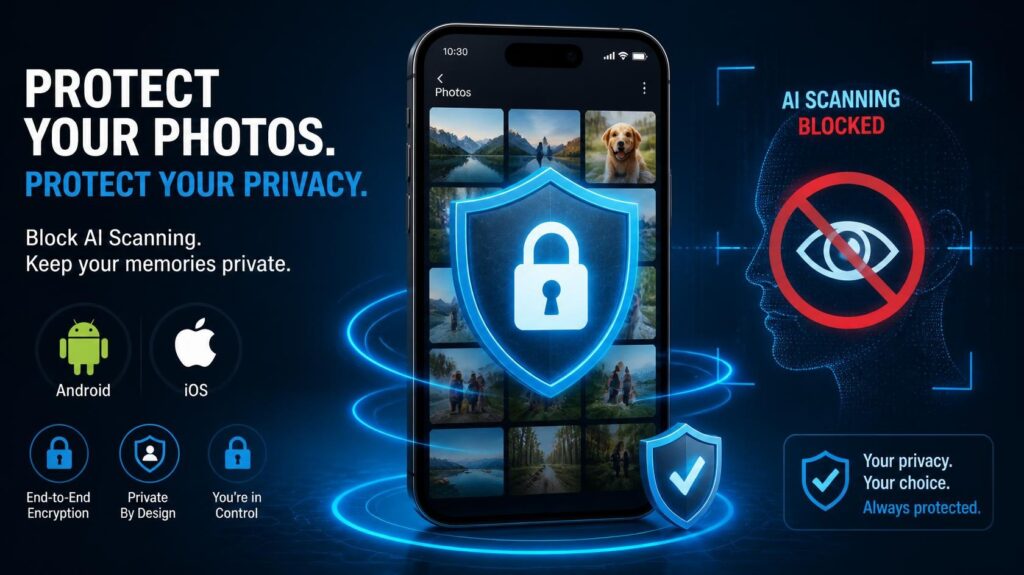
In the era of rapid artificial intelligence integration, learning how to stop AI photo scanning on your smartphone is essential for protecting your personal privacy. Today, tech giants like Google, Apple, and Microsoft rely on sophisticated on-device and cloud-based AI models to analyze, index, and catalog every photo you capture.
While companies claim this scanning occurs locally or serves convenient features—like searching “beach” in your gallery or auto-grouping faces—many users find this persistent background processing highly invasive. If you want to keep your personal memories completely private, here is your definitive step-by-step guide to stop AI photo scanning on both Android and iOS devices.
Why Should You Disable Automated Photo Processing
Before adjusting your settings, it is essential to understand why disabling automated indexing matters. Server-side and on-device AI algorithms build detailed facial geometry maps, extract location metadata, and catalog personal habits. Learning how to stop AI photo scanning gives you full ownership back over your digital footprint while preventing unintended data exposure.
1. How to Stop AI Photo Scanning on Android (Google Photos)
Google Photos relies heavily on cloud-based machine learning models to identify faces, recognize objects, and offer automated edits. Because Android is deeply integrated with Google’s ecosystem, you must adjust specific settings within the Google Photos app to restrict this automated indexing.
Step A: Turn Off “Group Similar Faces” (Face Grouping)
Google’s algorithms continuously scan facial geometry across your library to group people together. Disabling this function actively removes the face-mapping models created from your media.
- Open the Google Photos app.
- Tap your Profile icon in the top right corner and select Photos settings.
- Tap on Privacy (or Group similar faces, depending on your Android OS version).
- Toggle Off the option for “Group similar faces”.
Note: Disabling this feature clears existing face-grouping data associated with your Google account.
Step B: Disable Cloud Backup
Server-side AI engines cannot process data they cannot access. Keeping your media strictly on local storage is the most effective way to stop AI photo scanning across Google’s cloud infrastructure.
- Open Google Photos, navigate to Settings > Backup.
- Switch Backup completely Off.
2. How to Stop Apple’s On-Device AI Photo Scanning (iOS)
Apple places a strong emphasis on user privacy, yet iOS still utilizes local processing engines (Apple Intelligence and the Neural Engine) to scan photos for scenes, search terms, and curated memories.
Step A: Disable “Show in App” and Search Scanning
iOS system-wide search indexing (Siri & Spotlight) continuously reads your photo gallery to make images queryable. You can prevent Siri from analyzing your photos with these steps:
- Open the Settings app on your iPhone.
- Scroll down and select Siri & Search.
- Scroll through the app list and tap Photos.
- Turn off “Learn from this App” and “Show Content in Search” to stop AI photo scanning through Apple’s search engines.
Step B: Turn Off iCloud Photos Sync
Similar to Google, Apple’s cloud infrastructure processes your media when iCloud Sync is active. To limit media access strictly to your local physical device:
- Open iPhone Settings and tap your Apple ID profile at the top.
- Tap iCloud, then select Photos.
- Toggle off “Sync this iPhone”.
3. Best Alternatives: Switch to Encrypted Local Storage
Disabling default cloud backups means you still need a reliable method to protect your data against device loss or damage. The most effective way to secure your library without exposing it to machine learning models is using Zero-Knowledge (End-to-End Encrypted) solutions.
With zero-knowledge encryption, your files are encrypted locally before leaving your phone. The cloud host stores scrambled data without holding the decryption key—ensuring no automated systems can analyze your content.
- Ente Photos: An open-source, end-to-end encrypted alternative to Google Photos. It operates without automated background processing, keeping your data locked to your private key.
- Proton Drive: Developed by the privacy-focused team behind ProtonMail, offering fully encrypted, secure photo backup options.
- Local Hard Drives / Physical Media: The most direct offline backup strategy. Transfer your media regularly to a physical external SSD or computer via a wired USB connection.
4. Take Control of Your Media Privacy
Smart features offer daily convenience, but your personal gallery should remain entirely under your control. By disabling face recognition features, turning off unencrypted cloud sync, and restricting search indexing, you effectively stop AI photo scanning from cataloging your life. Spending a few minutes adjusting these settings ensures your personal memories remain strictly private on Solutionodex.